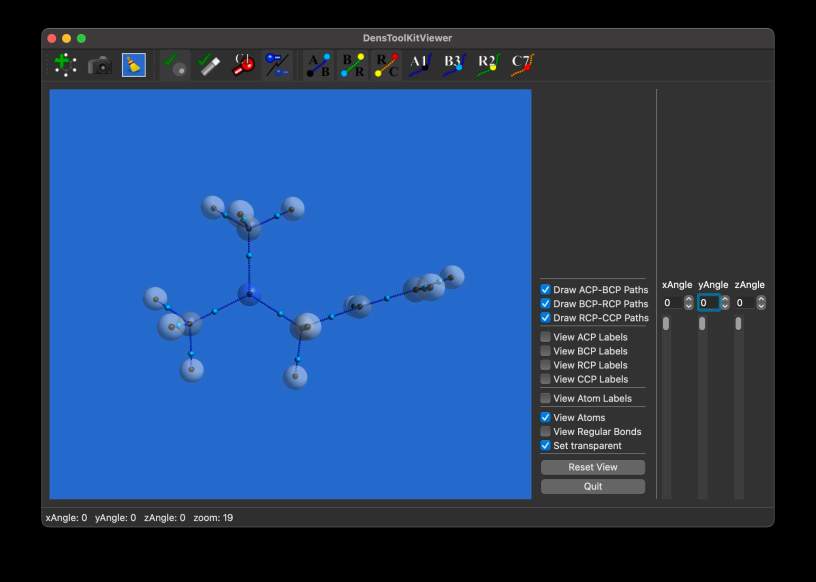
The new DensToolKitViewer just got even better! So, if you want to update DTKViewer to make the most of the new features, in this tutorial we shall compile and install DensToolKitViewer. We provide the explicit steps to compile under Ubuntu and under MacOSX.
We will assume that the git repo is cloned in /home/your_username/Downloads. For this, execute the following commands
$ cd ~/Downloads
$ git clone https://github.com/jmsolano/denstoolkit
After cloning the repository, go to the denstoolkit/src directory:
$ cd denstoolkit/src
After cloning the repository, go to the denstoolkit/src directory:
Installation
Ubuntu (Debian-based)
Install the dependencies, which depend on your Operating System. If you are compiling in Ubuntu or any other Debian based distribution, install:
$ sudo apt-get install cmake freeglut3-dev qtdeclarative5-dev libxmu-dev libxi-dev mesa-common-dev libgl1-mesa-dev
After dependencies have been installed, execute the following commands (make sure you are in the denstoolkit/src directory):
./checkdependencies
cd dtkview
mkdir build
cd build
cmake ../
make -j4
sudo cp bin/DensToolKitViewer /usr/local/bin
That’s it! DensToolKitViewer is now installed in your system. To execute it, type in the terminal:
DensToolKitViewer &
MacOSX
Hombrew
If you are compiling in MacOSX using Hombrew, install:
$ brew install cmake qt@5 freeglut
Search the full path of QT5 binaries. Usually, in the terminal you can type:
$ ls /opt/homebrew/Cellar/qt\@5
followed by quickly typing two times the Tab key. This will show you the complete path, which is usually something like /opt/homebrew/Cellar/qt\@5//5.15.11_3 or something similar. Copy this path, since you will need it in the following commands:
./checkdependencies
cd dtkview
mkdir build
cd build
cmake -DQT5_LIB_ROOT=/opt/homebrew/Cellar/qt\@5/5.15.11_3 ../
make -j4
In the above commands, do not forget to replace the path of the Qt5 libraries (/opt/homebrew/Cellar/...). Most likely, when compiling in MacOSX, you will get error messages similar to:
.../moc_dtkglwidget.cpp:...: error:
use of undeclared identifier 'QGLWidget';
did you mean 'QWidget'?
To correct this, correct the names of QGLWidget —> QOpenGLWidget. Using your favorite text editor, replace in moc_dtkglwidget.cpp file “QGLWidget” by “QOpenGLWidget”. Then, finish the compilation:
make
The copy the app bundle to your system. Usually to /Applications:
cp -R bin/DensToolKitViewer.app /Applications/
The app /Applications/DensToolKitViewer.app should be accessible as any other application in your system. However, to open it for the first time, you can type in the terminal:
open /Applications/DensToolKitViewer.app
Macports
If you are compiling in MacOSX using Macports, install:
$ sudo port install qt5 freeglut
The Qt5 libraries should be installed in /opt/local/lib/Qt5. To confirm this, type:
$ ls /opt/local/lib/Qt5
The ls command should display a lot of files. If so, execute:
./checkdependencies
cd dtkview
mkdir build
cd build
cmake -DQT5_LIB_ROOT=/opt/local/lib/Qt5 ../
make -j4
In the above commands, do not forget to replace the path of the Qt5 libraries(/opt/local/lib/Qt5). Most likely, when compiling in MacOSX, you will get error messages similar to:
.../moc_dtkglwidget.cpp:...: error:
use of undeclared identifier 'QGLWidget';
did you mean 'QWidget'?
To correct this, correct the names of QGLWidget —> QOpenGLWidget. Using your favorite text editor, replace in moc_dtkglwidget.cpp file “QGLWidget” by “QOpenGLWidget”. Then, finish the compilation:
make
The copy the app bundle to your system. Usually to /Applications:
cp -R bin/DensToolKitViewer.app /Applications/
The app /Applications/DensToolKitViewer.app should be accessible as any other application in your system. However, to open it for the first time, you can type in the terminal:
open /Applications/DensToolKitViewer.app
Uninstallation
Linux
To update DensToolKitViewer, there is no need to uninstall the previous version, i.e., you can simply compile the new version and install it (which will overwrite the previous version). However if, for some reason, you need to uninstall the previous version, you can simply erase the old binary. For this, you need to know the path of the old binary, which can be done by typing:
which DensToolKitViewer
The above command will display something like:
/usr/local/bin/DensToolKitViewer
Then, type:
sudo rm /usr/local/bin/DensToolKitViewer
(or the path you have obtained with the command which). After this, the old version is removed from your system.
MacOSX
As with any other app in MacOSX, to uninstall DensToolKitViewer from you system, simply move the app to the Trash.
 Dr. Joaquin Barroso's Blog